

Take control of your programme’s budget.
The Budget Tool lets you track and tweak the issuance of nominations and monetary eCards in your recognition programme. With real-time visibility, you can easily prevent under or overspending and keep your programme and your people thriving.
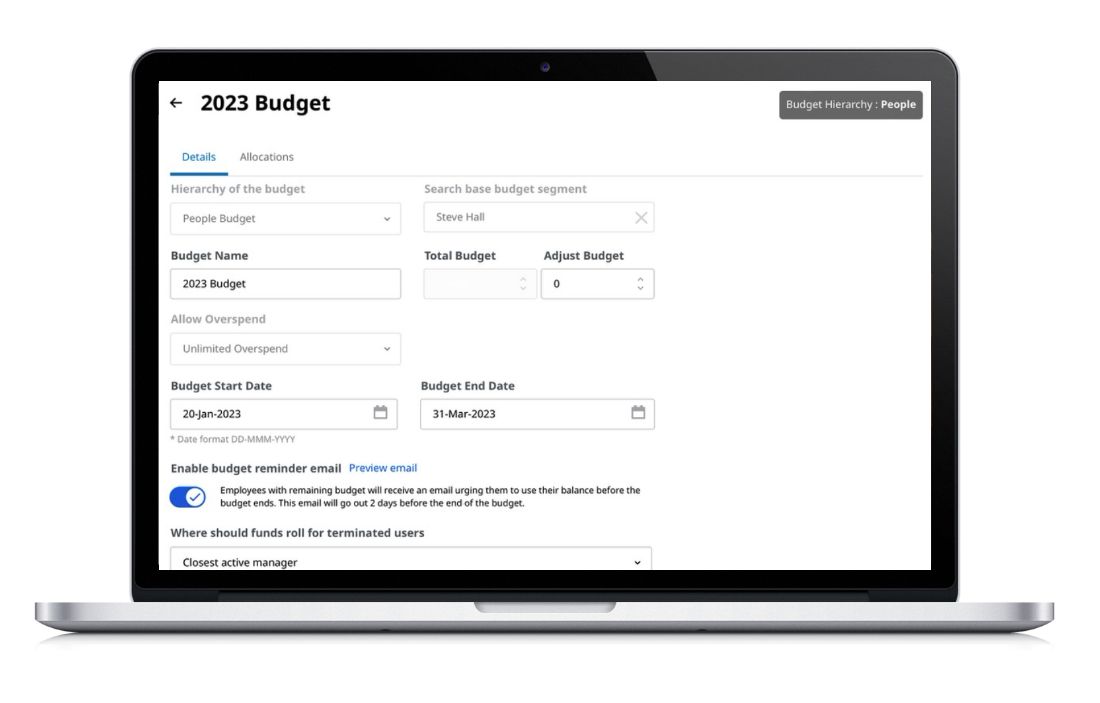
What the Budget Tool is for:
- Providing real-time visibility of programme spend broken out by the Business Unit or People budget hierarchy (based on your data file)
- Preventing overspend by stopping the approval of nomination/sending of monetary eCards when funds for a specific group have been depleted
- Controlling overspend of the budget by a specific amount
- Giving access to others in the programme for administering or viewing the budget
- Reminding employees to send recognition before their budget expires through automated configurable emails (for People budgets)
How to create a new budget
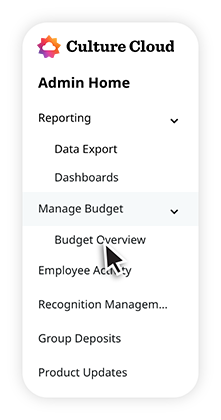
1. Select Budget Overview.
Log in to your recognition programme and select Toolbox > Admin Home > Manage Budget > Budget Overview.
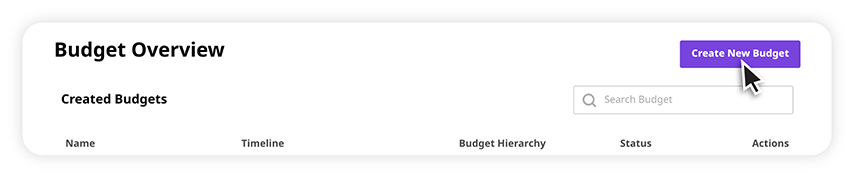
2. Create new budget.
In Budget Overview, click “Create New Budget.” The new budget will be displayed on the overview page with an incomplete status.
Fill out the required fields:
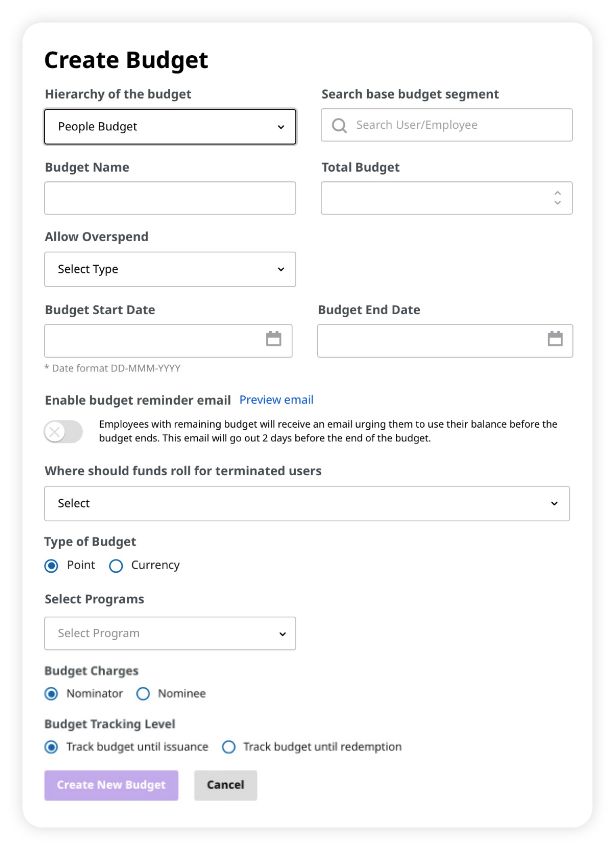
Budget Hierarchy: Select Business Budget or People Budget. The former is based on your company structure, while the latter is based on your manager structure.
Search base budget segment: Search for the user who is at the top of the organisation’s hierarchy (e.g. the CEO). Note: Business Budget will not have this option if it is selected.
Budget Name: Enter a name for the budget. We recommend that you include a reference to the budget timeframe in the Budget Name (e.g. Annual Programme Budget: Jan. 1, 2022 - Dec. 31 2022)
Total Budget: Enter the total amount of points/dollars (currency) to be associated with the budget.
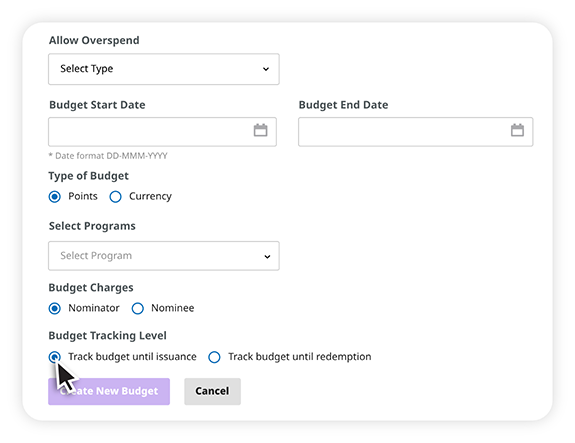
Allow Overspend: Select the overspend rule to apply to the budget.
Budget Start and End Dates: Select the budget start and end dates that the budget will be active for. The Start Date must be the current date (i.e. date of creation) or later. Note: You cannot have multiple budgets with overlapping dates.
Enable budget reminder email: For People Budgets, you can turn on automatic email reminders prompting users to send recognition before their personal budgets expire. Click the toggle switch to turn on or off reminders.
Where should funds roll for terminated users: Select if remaining people budget for terminated users should roll into Closest active manager or Budget root.
Type of budget: Select if the Total Budget amount you entered was in points or in a currency amount.
Select Programmes: Select the checkbox(es) for the programme(s) this budget will be assigned to. Note: Multiple programmes can be assigned to a single budget. However, a single programme cannot be assigned to multiple budgets during the same time frame.
Budget Charges: Select whether you would like budget deducted from the nominator or nominee’s budget.
Budget Tracking Level: Select whether you would like to track budgets until issuance or redemptions (Issuance tracking is highly recommended if your programme is points based as Redemption tracking was developed for Access Code programmes). Note: Points tracking only uses issuance, while access codes only uses redemption.
3. Allocate funds.
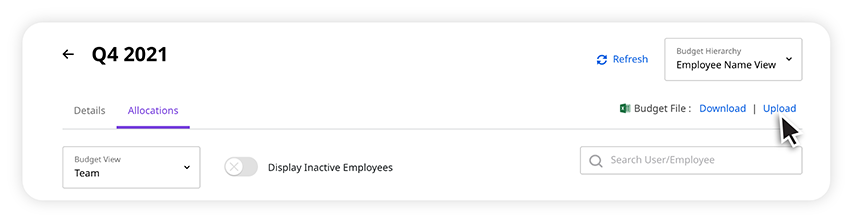
Click on the name of the budget, select the Allocations tab, and upload the CSV file. You can also download a template to fill out. NOTE: When creating a People Budget, you have the option to allocate budget from a specific manager.
Configuration options
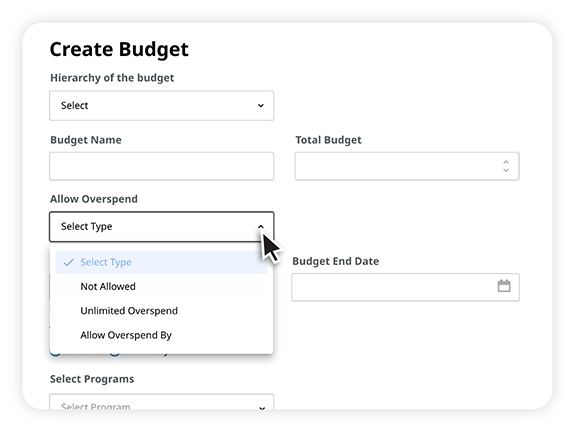
Spend control
There are three options for spend control: unlimited overspend, no overspend allowed, or overspend by a certain percent.
Budget reminder email
When creating a People budget, choose to turn on or off automated reminder emails nudging users to send recognition before their budget expires.

Click “Preview email” to view reminder email.

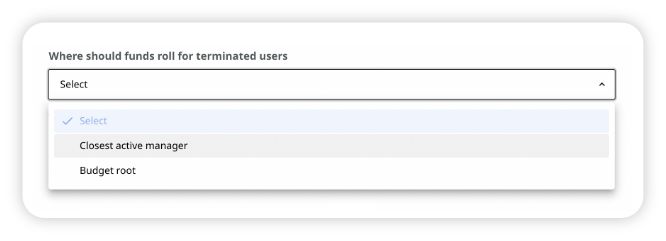
Terminated Users
Choose where remaining recognition budgets should roll for terminated users: Closest active manager or Budget root.
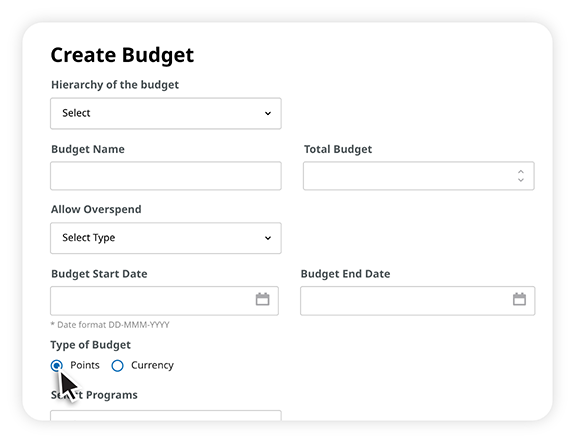
Budget type
Choose between either a points budget (recommended for international organisations that use multiple currencies) or a currency budget (recommended for organisations that use one currency).
Budget deductions
Deductions can be configured for how the business unit is charged and how it’s tracked (by issuance or redemption).
Pro Tips
Options
Once a budget is created, you can select from the following options on the Budget Overview page: enable budget, clone budget, download admins/viewers, and delete budget.
Auto balance
Use Auto Balance to distribute Parent Business Unit-level budgets across Sub-Business Units based on number of receivers, number of givers, or per person. NOTE: For People Budgets, Auto Balance distributes manager-level budgets across all managers within their hierarchy.
Auto Roll-Up
Auto Roll-Up does the opposite of Auto Balance, removing available budget from Sub-Business Units (or managers within the hierarchy) and transferring it to the designated Parent Business Unit (or Manager-level) budget.
Transferring budgets
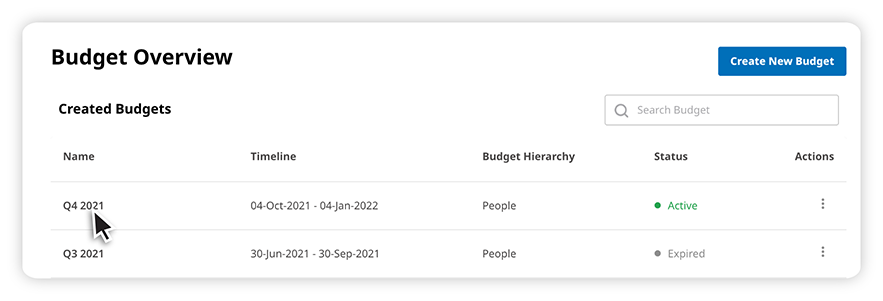
1. Navigate to the Budget Overview page: Toolbox > Admin Home > Manage Budget > Budget Overview.
2. Click the name of the budget under the Name column.
3. Click the Allocations tab.
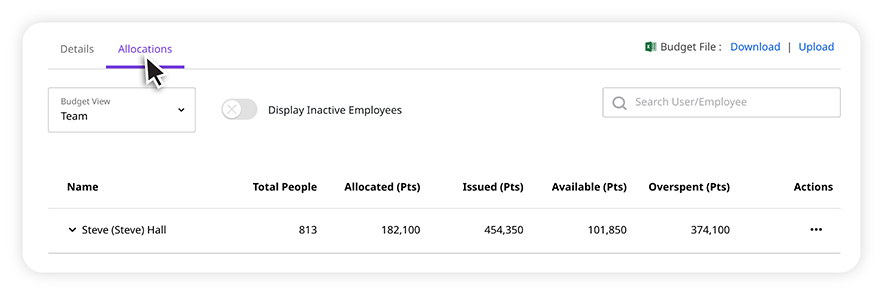
4. Click the arrow(s) to expand and view Business Units until you reach the one you wish to transfer budget to or from.
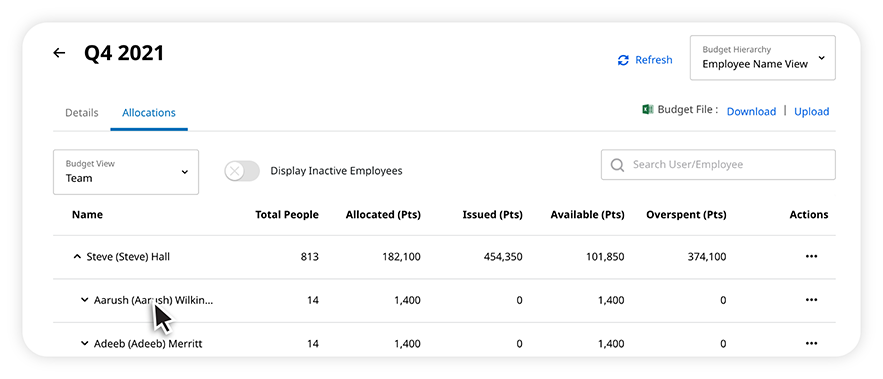
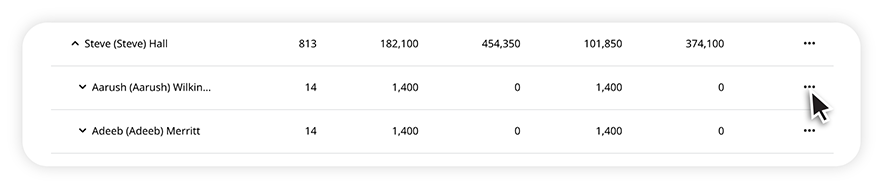
5. Click the vertical ellipsis menu under the Actions header for the Business Unit you wish to take funds from or allocate funds to.
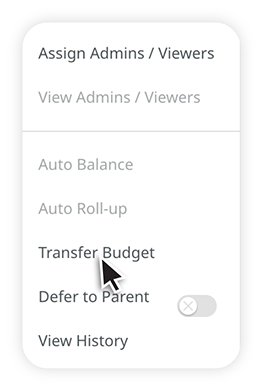
6. Click Transfer Budget in the modal window that appears to show additional options.
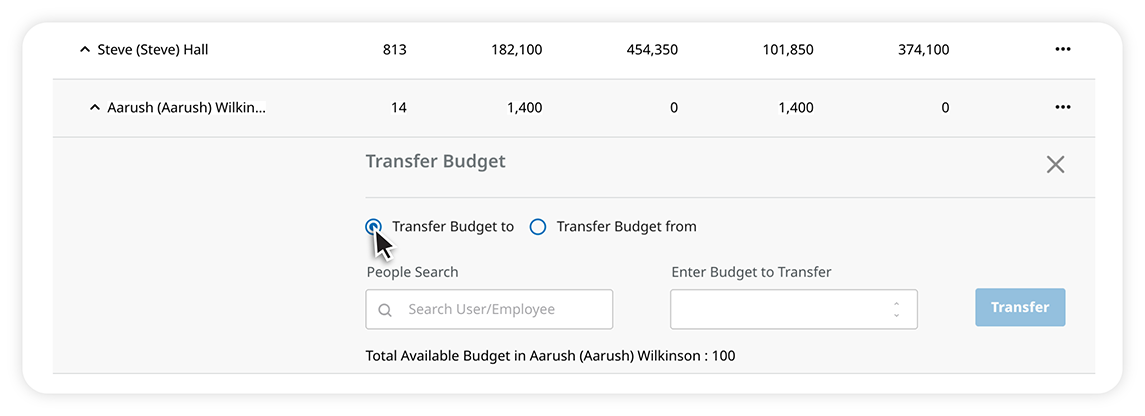
7. Select Transfer Budget to or Transfer Budget from and search for the Business Unit or Person to transfer to/from. Enter an amount and click Transfer to complete.
Reporting
The reporting options for the Budget Tool are Data Export and the Budget File, which acts as a Budget Summary report, letting clients see a breakdown of the active budget before making adjustments.