

Microsoft Outlook
To confirm that your recognition programme integration has been installed in Microsoft Outlook, go to “My Add-ins” and look for the “Culture Cloud” Add-in.

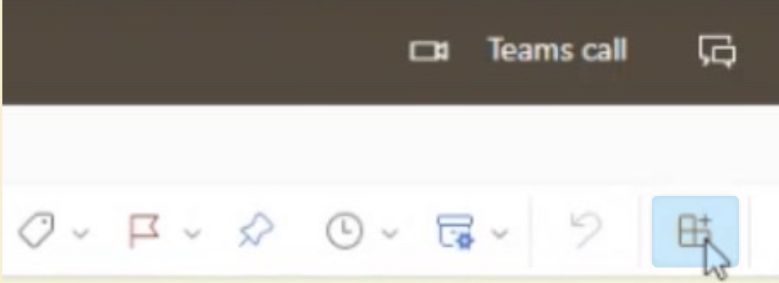
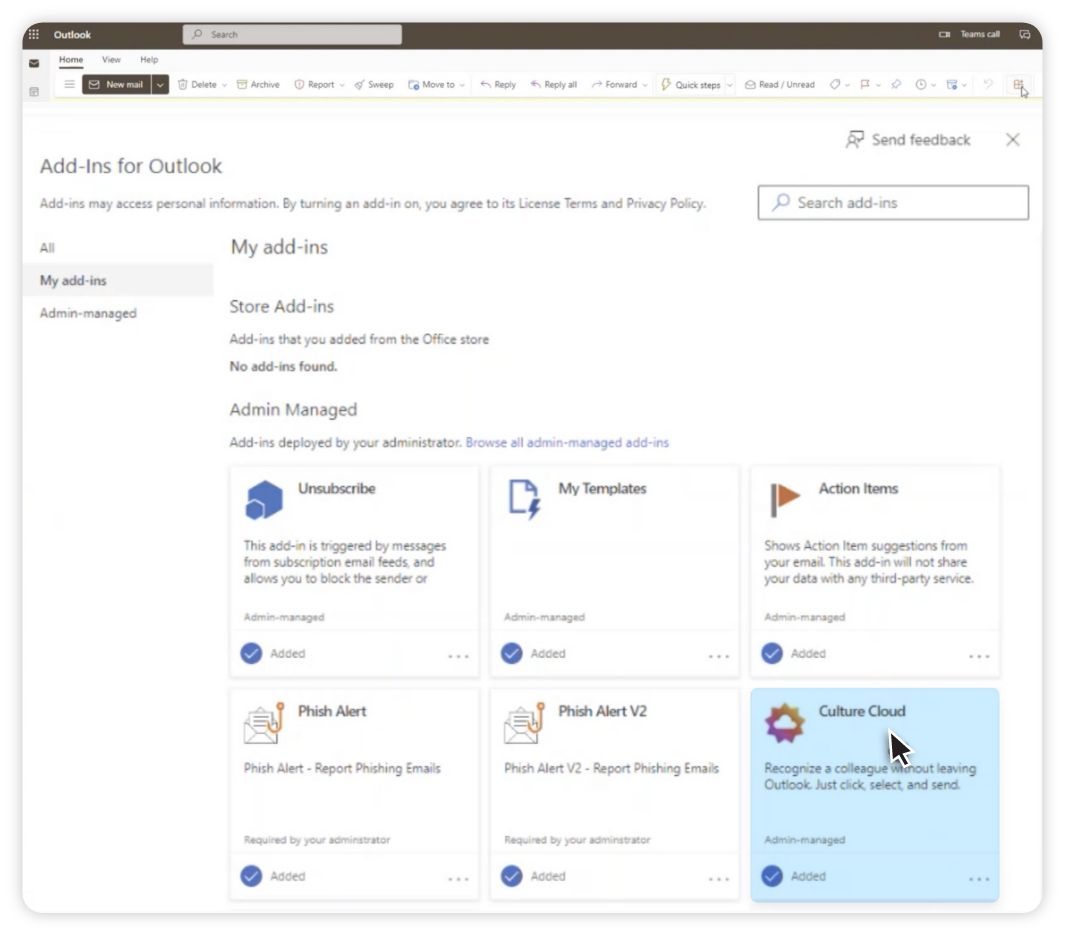
If Culture Cloud has been installed, you will also see the Culture Cloud icon in your email toolbar.


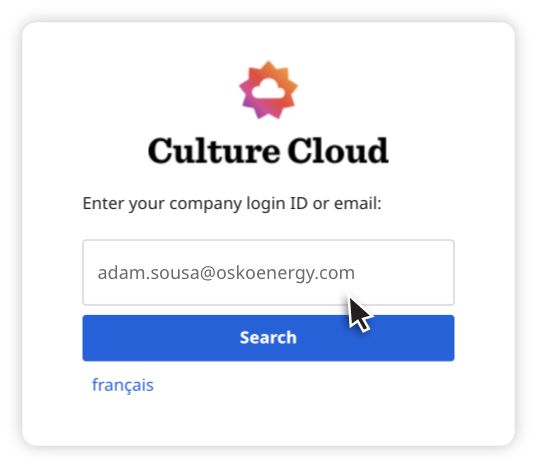
If you are not logged in to Culture Cloud, the login window will appear when you click the Culture Cloud icon. Enter your email address or Login ID.
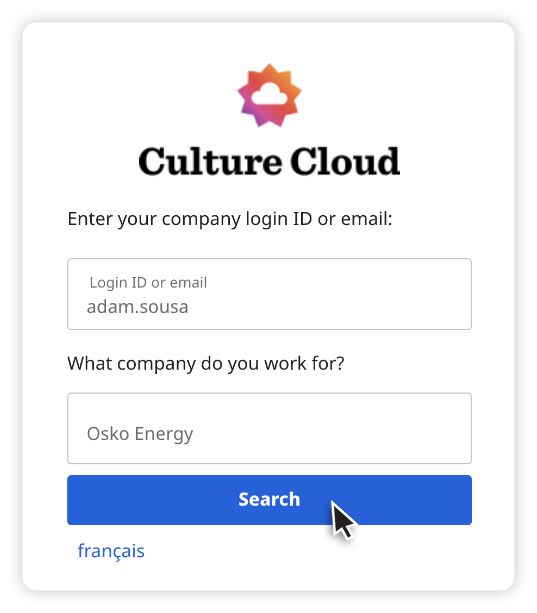
You may be asked to enter your company name.
A window will appear requesting a pairing code.

There are two ways to receive a pairing code:
1) Through your company’s recognition programme
2) By clicking “Email Pairing Code”
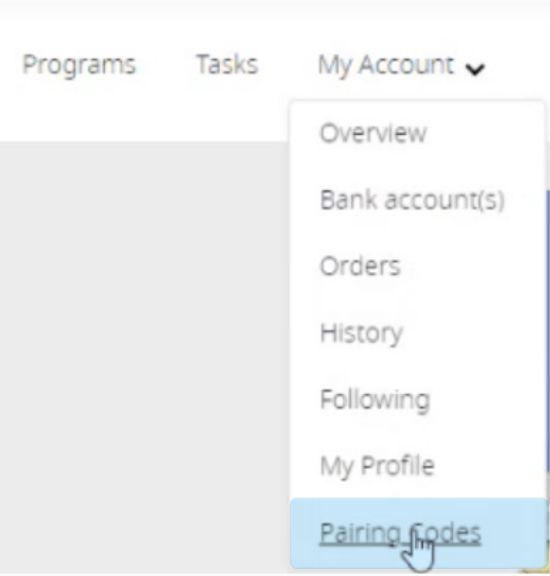
To get a pairing code through your company’s recognition programme, log on to your programme website, then go to the “My Account” drop down menu. Click “Pairing Codes.”
Then click “Generate Pairing Code.”
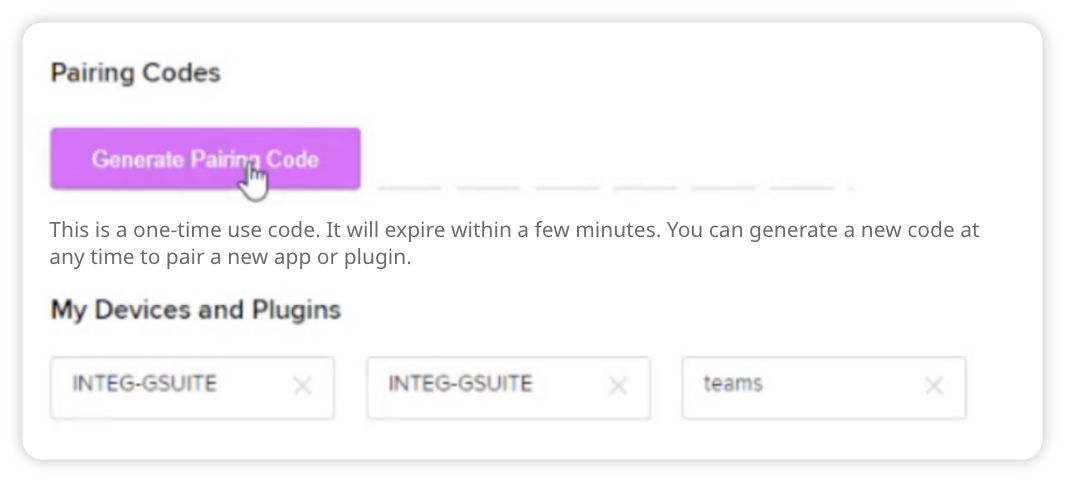
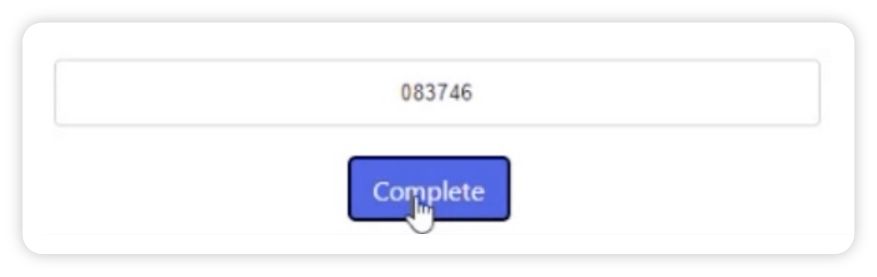
A 6-digit code will appear. Copy the code and return to the Teams “Welcome” window.

Paste the code into the “Enter pairing code” box and click “Complete.”
Alternatively, you can receive a pairing code by clicking the “Email Pairing Code” button on the Welcome page.
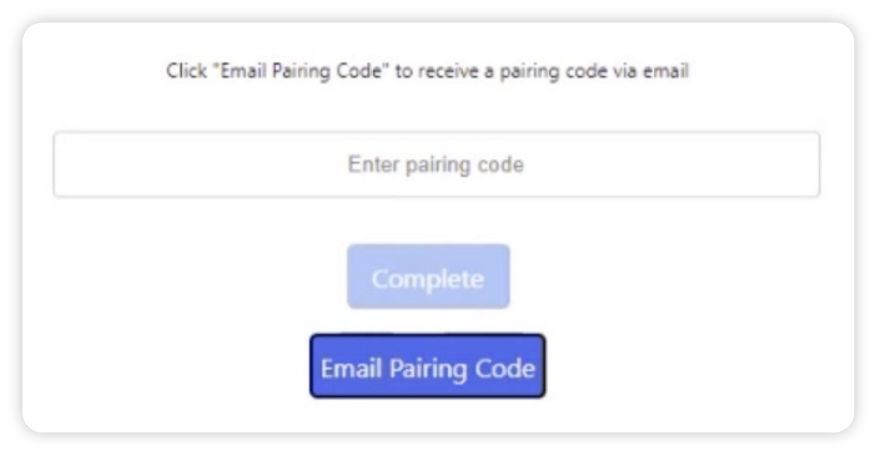
Check your email for the code and enter it into the “Enter pairing code” box. Then click “Complete.”
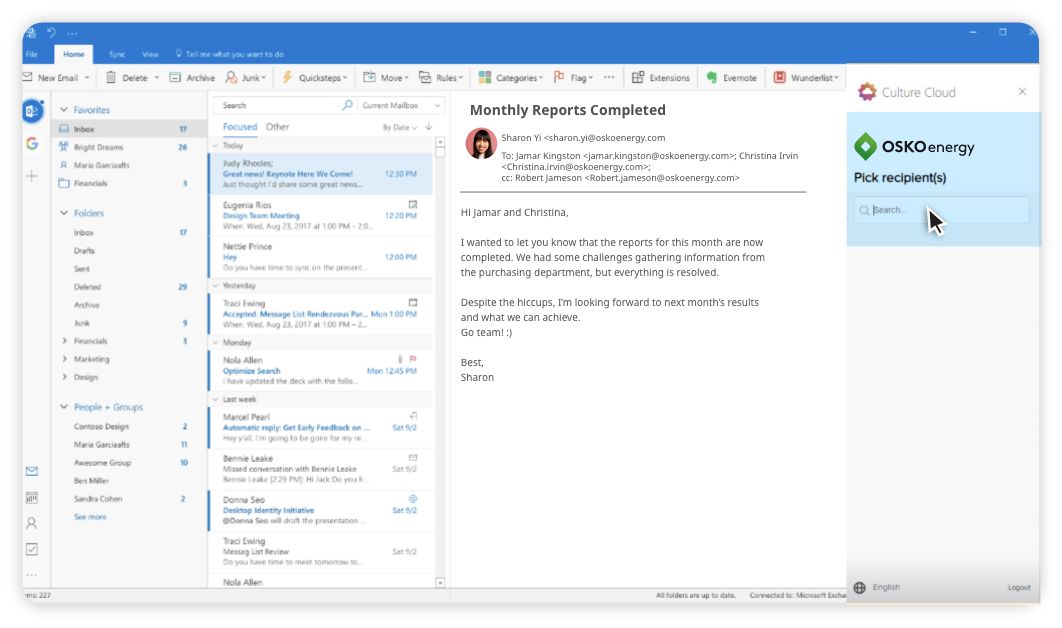
Once you are logged into your recognition programme account, you will see Culture Cloud as a sidebar in Outlook. You can search by name to find a recipient.
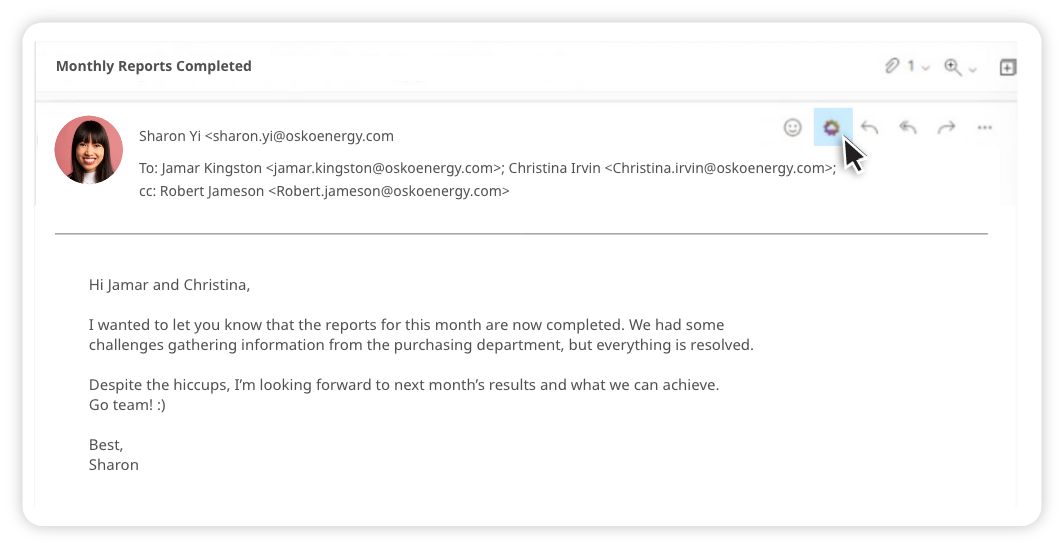
In the web browser version of Outlook, you can recognise a colleague directly from an email. Simply click the Culture Cloud icon that appears at the top right.
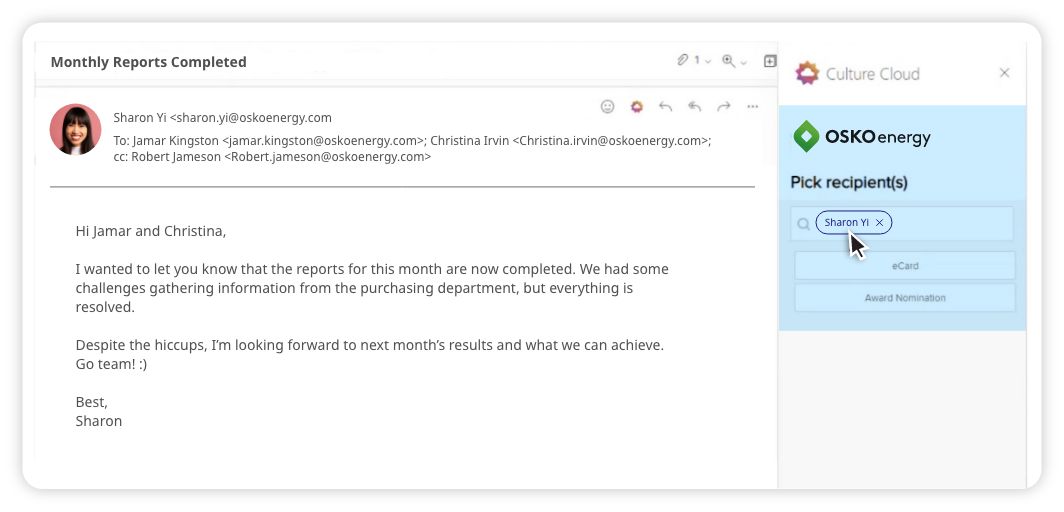
Once you’ve clicked the icon, your colleague’s name will appear in the recipient field.
To recognise a colleague from an email in the desktop application of Outlook, simply click the “Culture Cloud” icon on the ribbon.
The “Send Appreciation” screen will open, self-populated with the colleague’s name.

Next, choose to send an eCard or an Award Nomination.
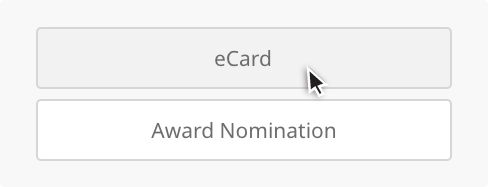
Send an eCard
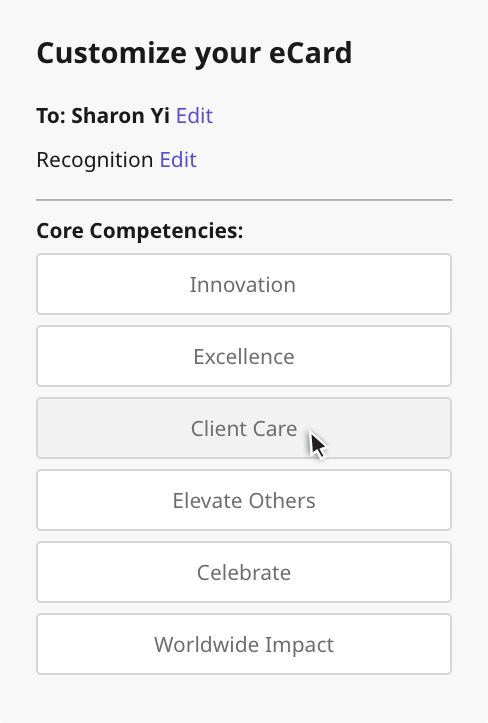
Customise your eCard
You may have the option to highlight a core competency or corporate value demonstrated by the recipient.
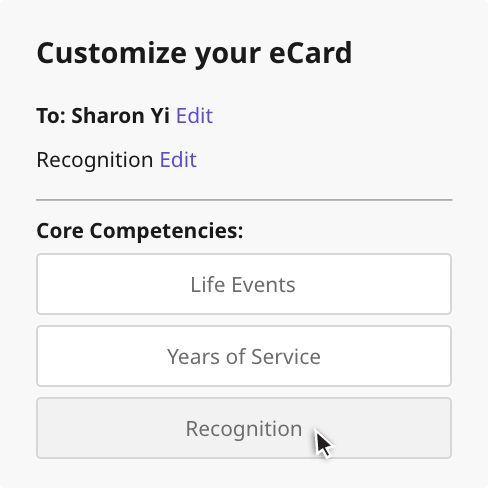
You may need to select a recognition programme.
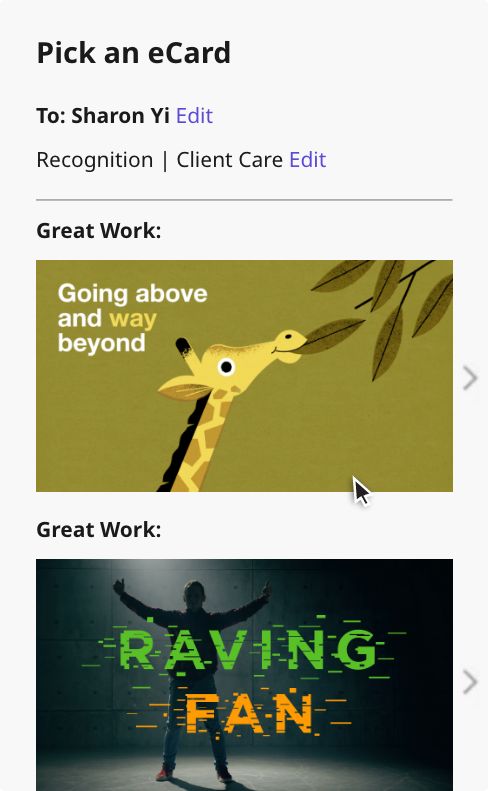
Choose an eCard design. To see options in each category, use the arrow buttons to scroll through designs. Click on the card you want to send.
Next, choose an Award Level and add a personalised message to the recipient.
Your eCard may automatically include a “CC” to the recipient’s manager or supervisor. You may remove a copied recipient by clicking the “X” next to their name, or add other copied recipients by typing in their name(s).
When you’ve completed your eCard, click “Submit.”
Note: You cannot schedule eCards to be sent on a later date in the Culture Cloud Outlook Integration.

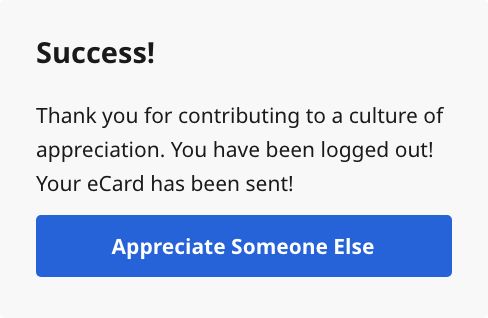
After submitting your completed eCard, you will receive a message that your card has been sent.
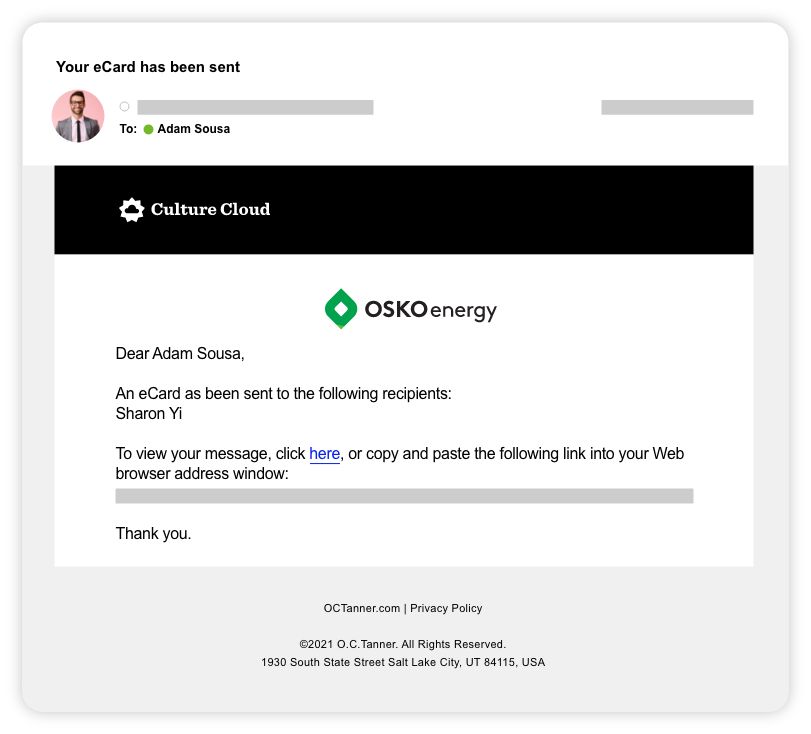
You will also receive an email confirmation within Outlook that your eCard has been sent.
Send Award Nomination
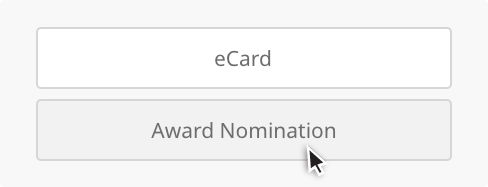
To nominate someone for an award, click Award Nomination.
Customise the award by choosing the nomination level. You may have the option to get help through the Nomination Wizard. Click “Need help in determining an award level?” to access this feature.
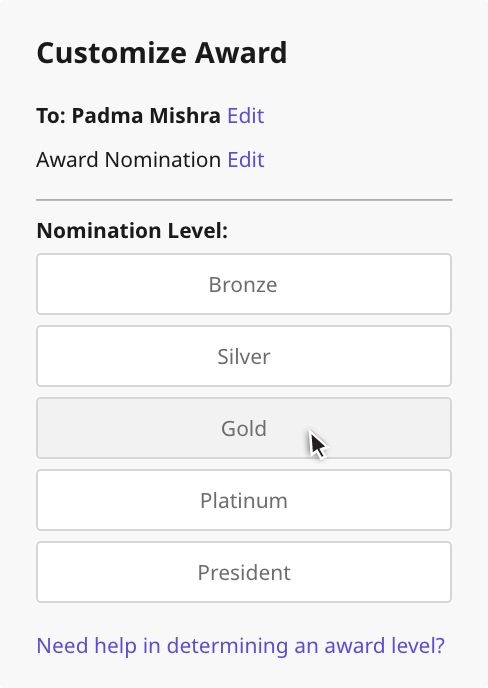
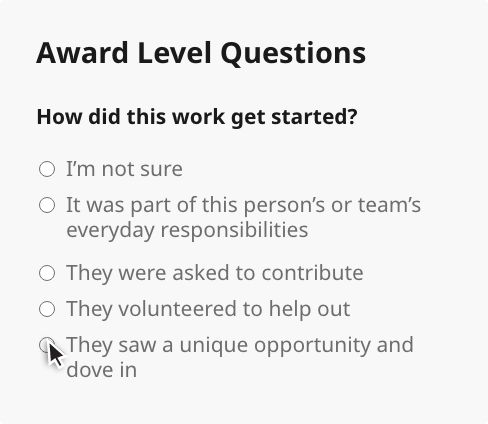
The Nomination Wizard will ask a series of questions to determine the appropriate award level.
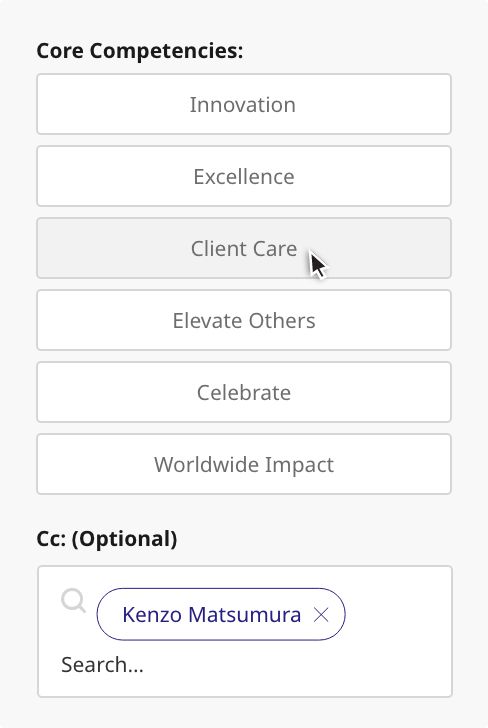
You may have the option to highlight a core competency or corporate value demonstrated by the recipient. Choose the appropriate competency or value from the list.
Your award nomination may automatically include a “CC” to the recipient’s manager or supervisor. You may remove a copied recipient by clicking the “X” next to their name, or add other copied recipients by typing in their name(s).
Next, you’ll see the approver of the award and the presenter. Please describe the recipient’s achievements. (Note that this description will appear on the award certificate).
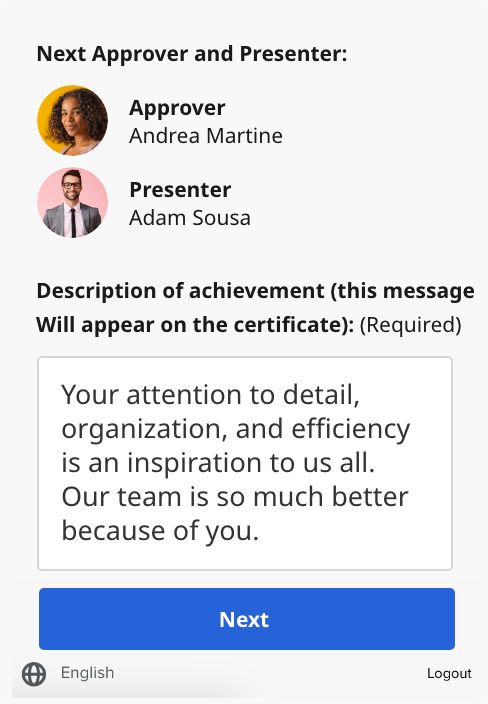
When you’re finished, click “Next.”

You may have the option to choose whether the award will be displayed on your company’s recognition social wall. You can also include any additional notes to the award approver here. (These notes will not be included on the award certificate.)

When you’re finished, click “Submit.” Your award nomination will be sent to the approver for review.
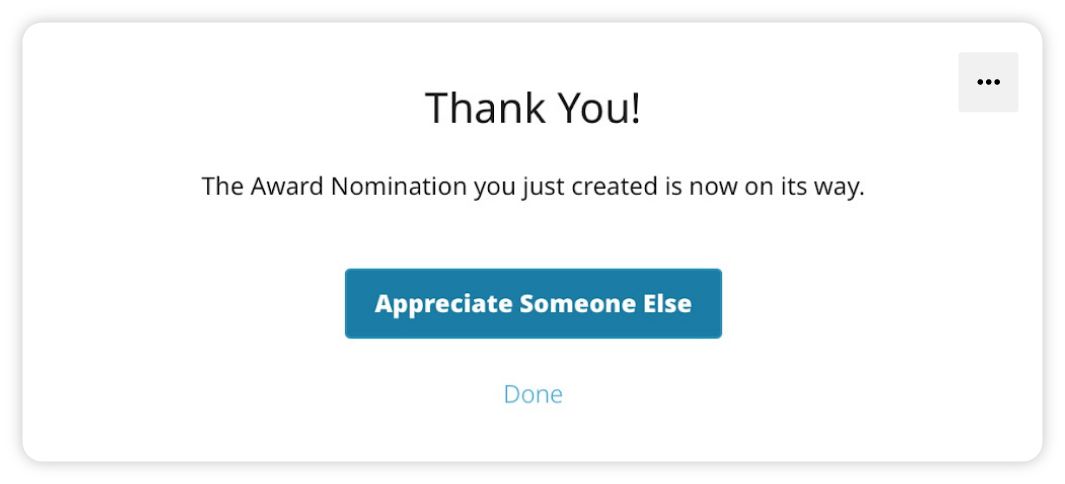
Give more recognition by clicking “Appreciate Someone Else.” To exit Culture Cloud, click “Done.”
You can log out of Culture Cloud by clicking “Logout” in the bottom right corner. Note that if you log out, you will have to go through the login process again the next time you want to use the Culture Cloud integration in Outlook.
You can remain logged in to the Culture Cloud integration in Outlook for 90 days. At the end of 90 days, you will need to log in again.
Find the quickest answer below
.webp)
.webp)
.webp)
.webp)
Frequently asked questions
Access codes are usually presented in an email, letter, certificate, or in a printed brochure.
When you receive your access code will depend on the arrangements made by your employer. Many companies choose to present your access code prior to an anniversary; other companies choose to present your access code on your anniversary. If you are not sure of your company’s practice, please check with your manager.
If you have misplaced your access code, fill out the form below for assistance in acquiring your access code.
Please have your manager fill out the form below with the correct information and we will gladly update our files with any changes.
- Open your internet browser
- Locate and highlight the web address of the current page
- Copy and paste or type the web address provided in your company’s email, letter, certificate, or brochure and press enter.
Our websites are a private domain and cannot be found using a search engine.
You can obtain your ring size by visiting any local jeweler or retailer that sells rings. They can do a sizing for you. You can also do a sizing on your own with a ring sizing sheet. Click here and print out the chart to determine the right size.
If you have your access number from your company’s email, letter, certificate, or brochure you can enter your order here.
Click on the track your order link and complete the request form with required information.
Your award may ship to either your home or work location depending on the arrangements made by your employer. When you use the track your order feature only the city and state will be given. To verify the complete address, please fill out the form below.
An address can be changed if the award has not yet shipped; your manager may request an address change if the award is shipping to a work location.
If your award is shipping to your home it should be received 2-4 weeks after you order it. If your award is shipping to your work, it should be received on or around your anniversary date.
Your award may still be in production, or it may be shipping directly from one of our suppliers.
Fill out the form below with required information.
O.C. Tanner, the leader in employee recognition solutions, is pleased to provide you with the most comprehensive warranty available.
If you are not fully satisfied with your award, it may be returned to O.C. Tanner for exchange. Click here to learn about our warranty. However, some companies have chosen to limit or not allow exchanges.
Fill out the form below and let us know the details of any missing parts. We will gladly assist you to ensure satisfaction with your award.
Fill out the form below with required information.
To verify if your order can be cancelled, please fill out the form below.
Microsoft Outlook
To change or cancel your order, or for the quickest response, please complete the form below.
1930 South State Street
Salt Lake City, UT 84115
United States of America
4200 Fairview Street
Burlington, Ontario L7L 4Y8
Canada
1 Langston Road
Loughton, Essex IG10 3SD
United Kingdom
Level 7, Tower II, Phase II
Raiaskaran TechPark
Andheri Kurla Road
Andheri East
Mumbai 400072
India
Level 15, 350 Queen Street
Melbourne VIC 3000
Australia
300 Beach Road, #34-07
The Concourse
Singapore 199555