Anniversaries
Celebrate milestones
Celebrate career milestones with Anniversaries. Honor anniversaries with a personalised Yearbook compiling notes, photos, and videos from friends and colleagues. Cap off the celebration with an award-shopping experience.
* Your programme configuration is unique to your company. Names and features may vary.
Celebrate teammates
On your recognition homepage, click the “Anniversaries” tab in the main navigation bar.

On the Anniversaries page, you can search for and select a colleague with an upcoming event, and see a list of upcoming anniversaries for the next 90 days, in chronological order.
To search, begin typing a name. A list of peers with upcoming anniversaries will appear.

Or choose a name from the chronological list of upcoming milestones on the Anniversaries page.

You’ll see the anniversary year being celebrated (5, 15, etc.), peer name, job title, unit location and the anniversary date.

The symbols indicate your commenting status:
- Check mark - you have written a note
- Pencil - you can edit your note
- Avatar - you haven’t written yet
Click on a name to write a personal note. You can write up to 350 characters.

Click “What should I write” for tips on how to write a meaningful and memorable expression of appreciation.

Add a photo and/or video to enhance your note.

Click “Add Photo” to include an image with your note. You’ll be able to choose a photo from your files.
You can crop or rotate your photo. If the selected crop area is low resolution, you will see a warning message. To remove a photo, click the “X” in the top right corner.
When you are satisfied with your photo, click “Save.”

To include a video with your note, click “Add a video,” then choose a video from your files. You’ll be able to preview your video. Click “X” to remove your video. Note that videos will only appear in digital Yearbooks, not in printed Yearbooks.
To keep the video you have chosen, click “Continue” or to exit video selection, click “Cancel.”

You’ll be able to preview your personal note before posting it. When you’re satisfied with your note, click “Save.”

You can return to your note and edit text, photo and/or video any time until 60 days after the anniversary date. Any updates submitted later than 14 days before the anniversary date will not appear in printed Yearbooks, but will be updated in digital Yearbooks.
After saving your own personal note, a message to invite others will appear, auto-populated with six names. Click a name to add to the invitation. Click “New suggestions” and six new names will appear. The list of suggested names that appear is prioritised by those in the same Department/Business Unit first, then Work Location, then everyone else. You can also type a name in the Search bar to find specific individuals you wish to invite.

On the Anniversaries page, you’ll see notifications for yearbooks that are printing soon - be sure to write a note before it’s too late.

You will also receive alerts in Tasks & Notifications when you have been invited to write a personal note for an anniversary.

On the day of an anniversary, you’ll receive an email reminder to celebrate your team member.

Celebrate your anniversary
Sixty (60) days before your anniversary, you’ll receive an email reminder to invite colleagues to write a personal note for your Yearbook. Click the link to get started.

You can also invite teammates to write a personal note for your Yearbook by clicking the “Invite” button on your Profile: Anniversaries tab.

Search for people to invite using the Search function, or click on suggested invitees to add them to the invitation. Click “New suggestions” and six new names will appear. The list of suggested names that appear is prioritised by those in the same Department/Business Unit first, then Work Location, then everyone else.

When you’re finished adding invitees, click “Send invites.”

To see who has already been invited, click “View sent invites.”

Teammates who have already posted a note to your Yearbook will have a checkmark by their name.

Track your upcoming anniversary on your Profile page. You’ll see a countdown to your celebration under the “Profile: Anniversaries” tab that will update daily. Scroll over the star marking your celebration day and a burst of confetti will appear.

If you have recently celebrated your anniversary, you’ll find a link to view your digital Yearbook in the Profile: Anniversaries tab.

On your anniversary date, you will receive an email inviting you to select a celebration gift. Click “Order Your Gift” to begin.

The link will take you to your digital Yearbook, where you can enjoy personal notes and congratulations from leaders and teammates.
In the top right corner, you’ll see a link to “order gift.”


There is also a link to “order gift” at the bottom of the personal comments portion of your Yearbook.

Click either link to choose an anniversary gift from the Award Store.
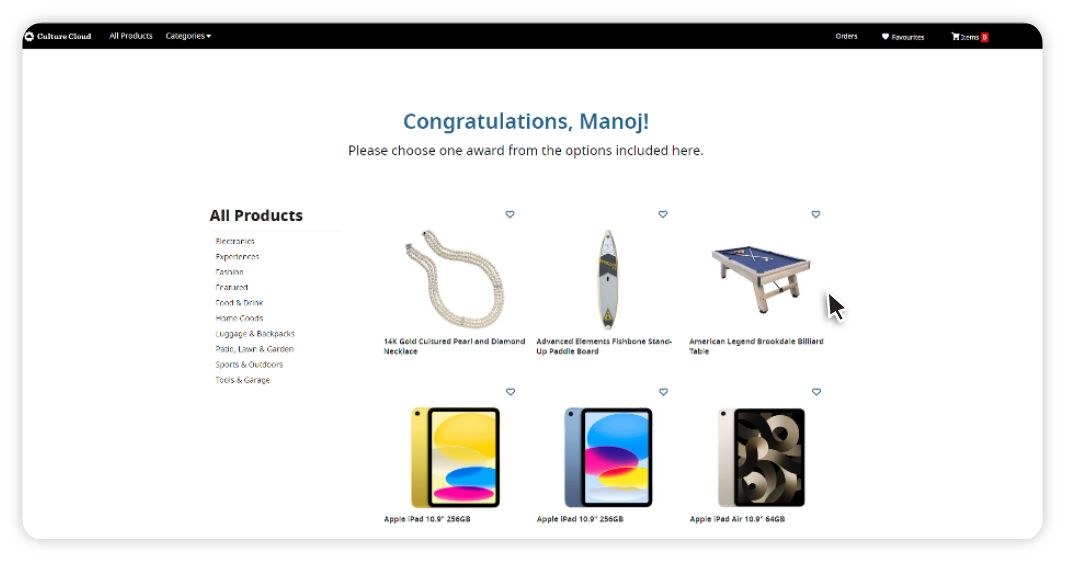
You will also receive a message inviting you to select an anniversary award in your Notifications. Click the notification to go to the Award Store.

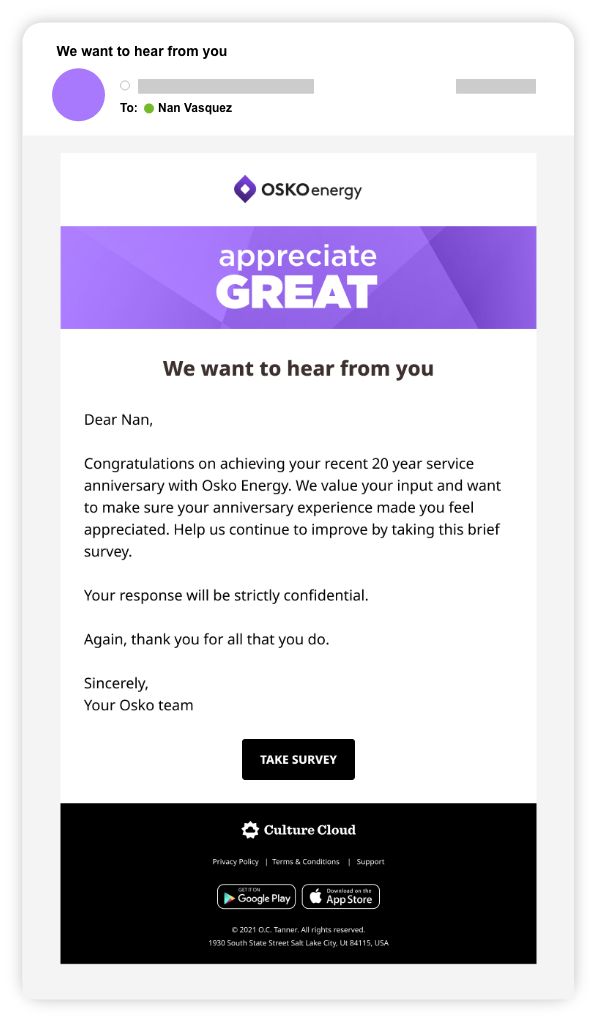
Sixty (60) days following your anniversary date, you will receive an email invitation to take a brief survey about your anniversary appreciation experience. Thank you for sharing your thoughts.
Anniversaries for Mobile
Anniversaries is available in the Culture Cloud app.
On the homescreen, you’ll see notifications of upcoming anniversaries.

Tap the Notifications button (the “bell” icon) to see a complete list of notifications regarding Anniversaries.
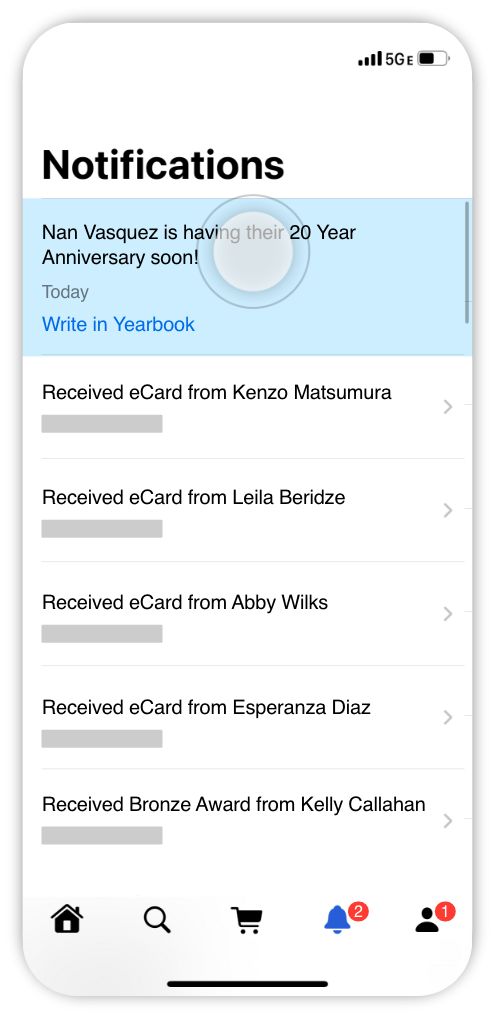
Tap “Write in Yearbook” to write a personal note. You can write up to 350 characters. (Leaders will be able to write up to 950 characters.)
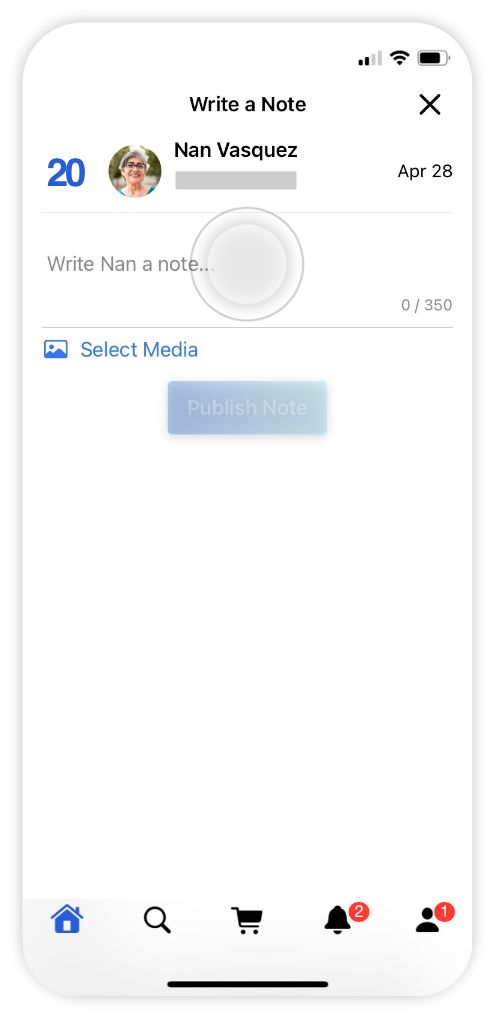
Tap “Select Media” to include a photo or video from your Photo Library, Camera, or Files.

Once you’ve chosen your preferred photo or video, tap “Publish Note.”
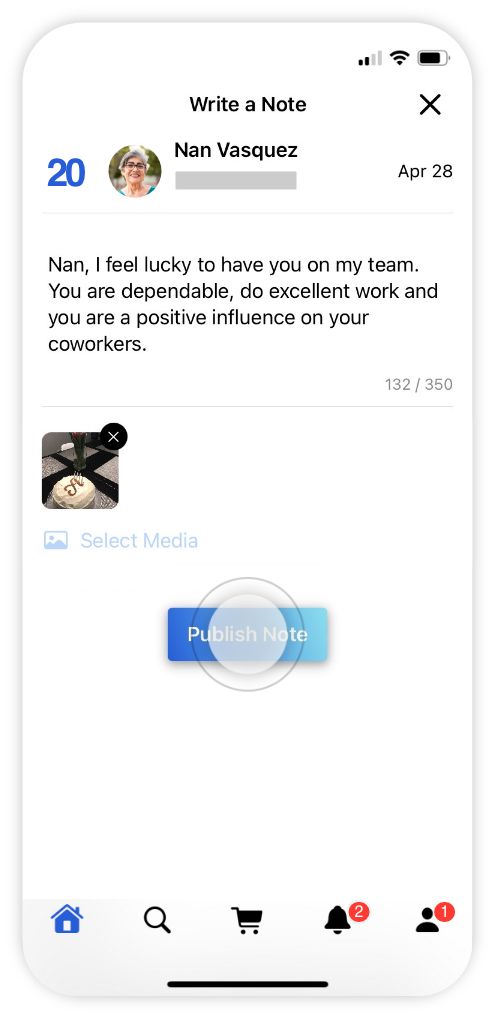
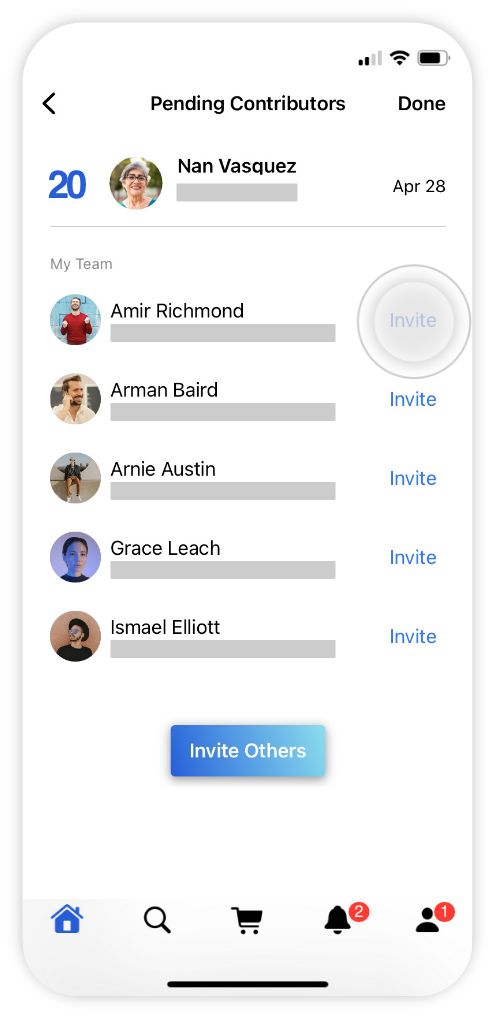
After you’ve published your note, you’ll see a confirmation with the date of your contribution to this Yearbook, along with a list of potential invitees. Tap “Invite” to instantly invite teammates to contribute a personal note.
You will also see a celebratory burst of confetti on your Notifications screen every time you submit a personal note for a Yearbook.

To edit a published note, go to Notifications and tap “Edit Yearbook Note.”

Make changes to text, photo or video, then tap “Update Note.”

When you visit a teammate’s profile page in the app, you’ll be able to see if they have an upcoming anniversary. Tap “Write in Yearbook” to write a personal note.

If you have already commented on a teammate’s Yearbook, you will be able to “Edit Yearbook Note” from their profile page.

Anniversaries for Leaders
Leaders enjoy a streamlined process to facilitate anniversary recognition and extra features to celebrate their team.
Forty-five (45) days before an anniversary date, leaders will receive an email invitation to add a personal note to their direct report’s Yearbook.

Click the link in the email to get started. Leaders can write up to 950 characters in their personal note and upload up to 3 photos and 1 video.

Leaders also have a responsibility to invite other teammates and friends to add their notes and congratulations to the celebrant’s Yearbook.
After saving your own personal note, a message to invite others will appear, auto-populated with six names. Click a name to add to the invitation. Click “New suggestions” and six new names will appear. The list of suggested names that appear is prioritised by those in the same Department/Business Unit first, then Work Location, then everyone else. You can also type a name in the Search bar to find specific individuals you wish to invite.

Click “View sent invites” to see who has been invited to write a personal note for this Yearbook. Teammates who have posted a note will appear with a checkmark next to their name.

Leaders can track upcoming anniversaries by visiting a direct report’s Profile page to view their Anniversary Celebration countdown. If you haven’t written in their Yearbook yet, a “Write in Yearbook” button will appear on the Anniversary countdown.

If you have already written in the Yearbook, you will have the option to “Edit personal note” or to “Invite” other teammates to write in this Yearbook.

Seven (7) days prior to the anniversary date, leaders will receive a reminder email with tips on creating a memorable celebration

On the day of an anniversary, leaders will receive an email reminding them to reach out to the celebrant and thank them.

Admin Tools: Anniversaries
Admins can view Anniversaries activity and information through the Employee Activity Tool in Culture Cloud Admin Home. Open the Employee Activity Tool by clicking on “Employee Activity” in the Admin Home menu.
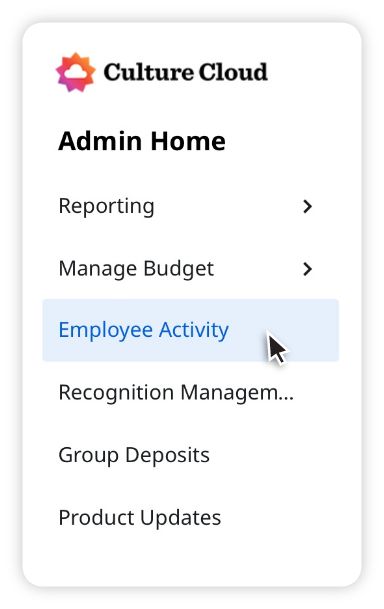
Enter an employee name in the Search bar and a drop-down menu of possibilities will appear.
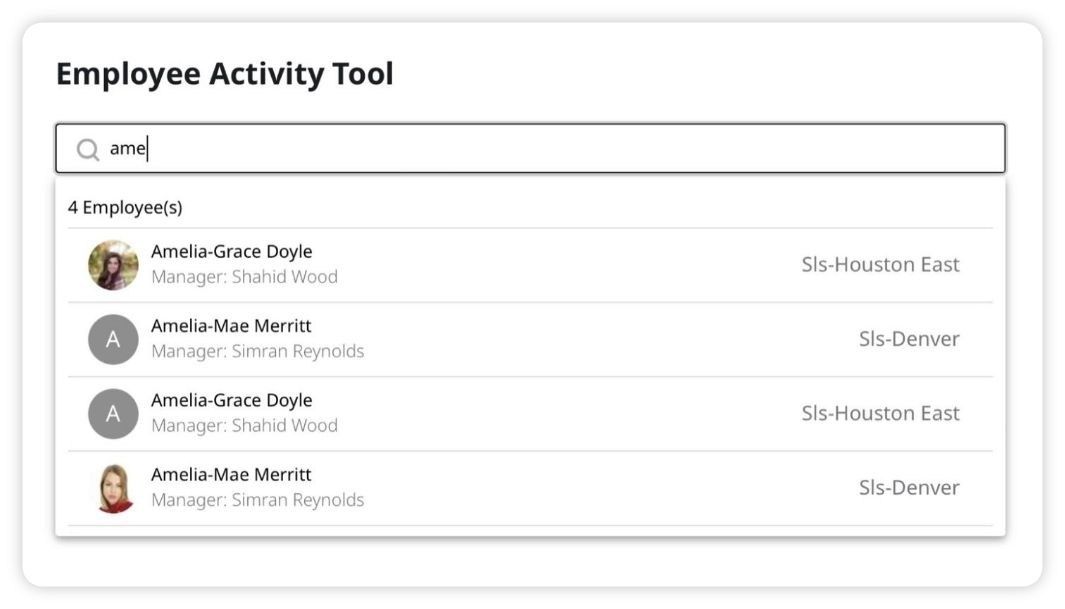
Click on the employee you wish to view, then click the “Celebrations” tab.
Here you can view the employee’s upcoming anniversary, personal notes posted to this employee’s Yearbook, and any personal notes the employee has contributed to a teammate’s Yearbook.
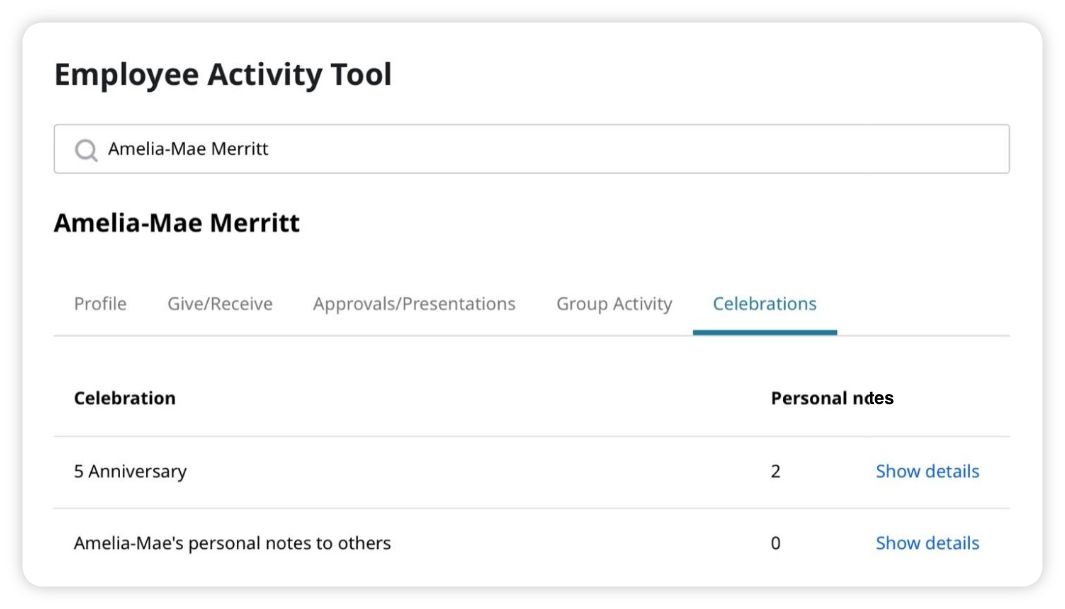
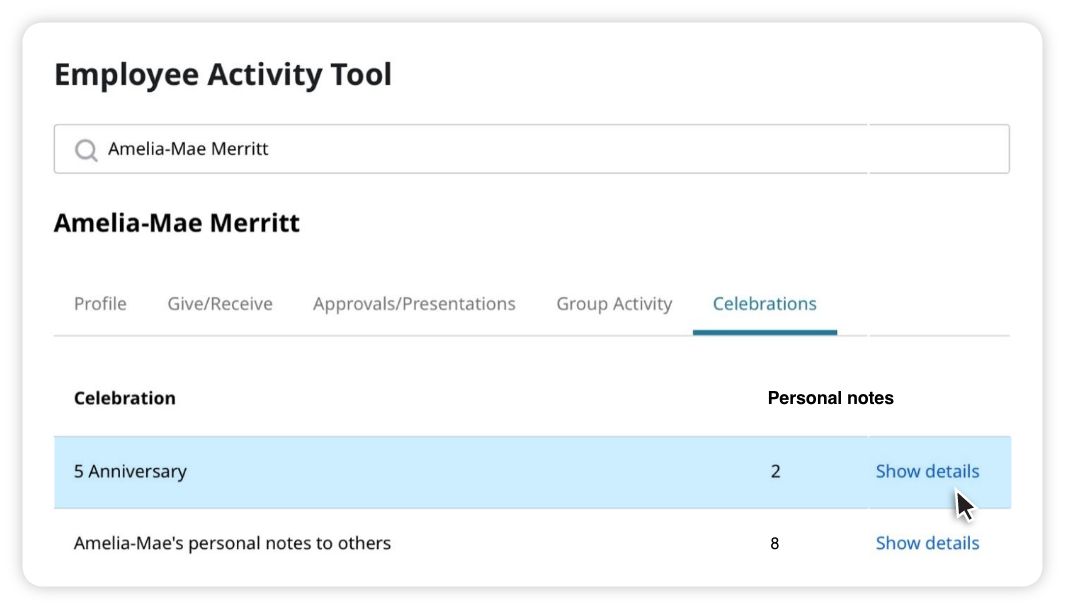
Choose the Celebration you wish to view by clicking “Show details.”
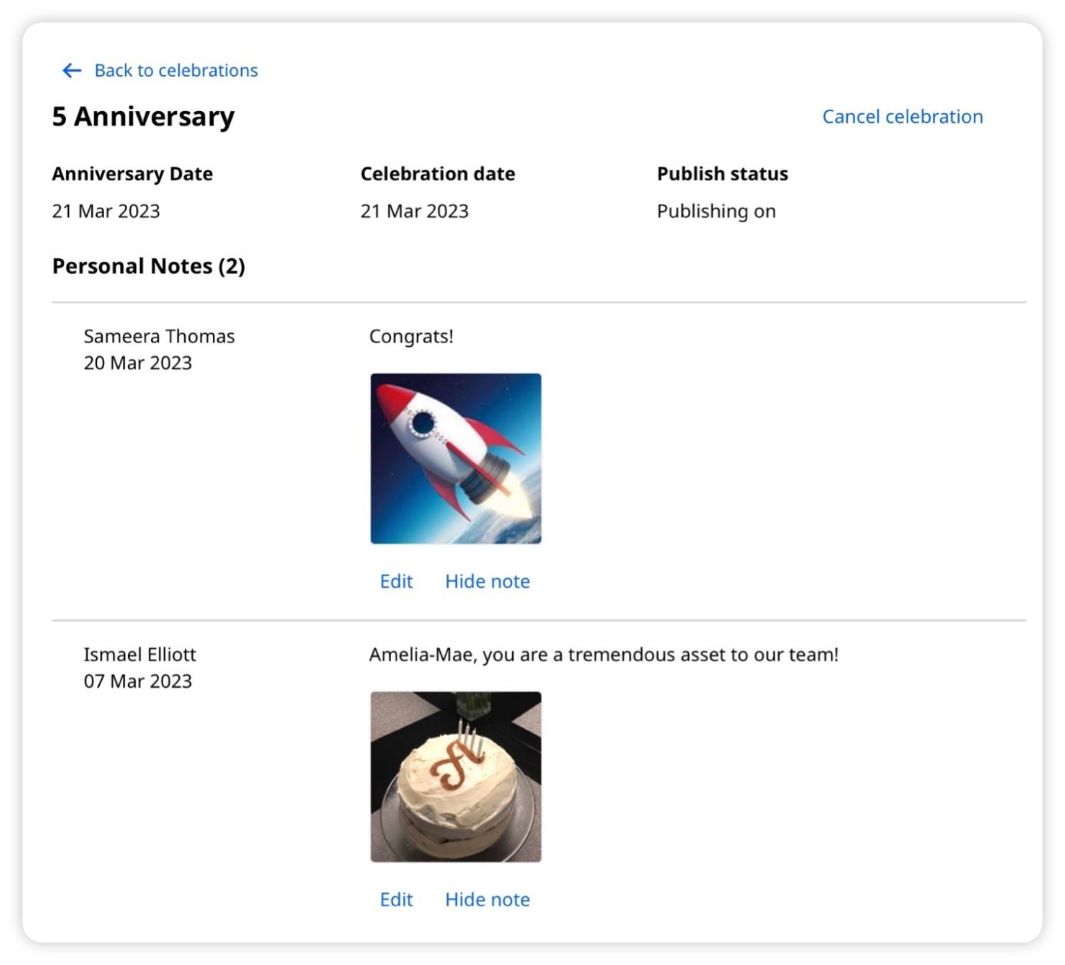
The detail view of an upcoming Anniversary will show the anniversary date, celebration date, publication status of the Yearbook connected with this anniversary and any personal notes that have been posted to the Yearbook.
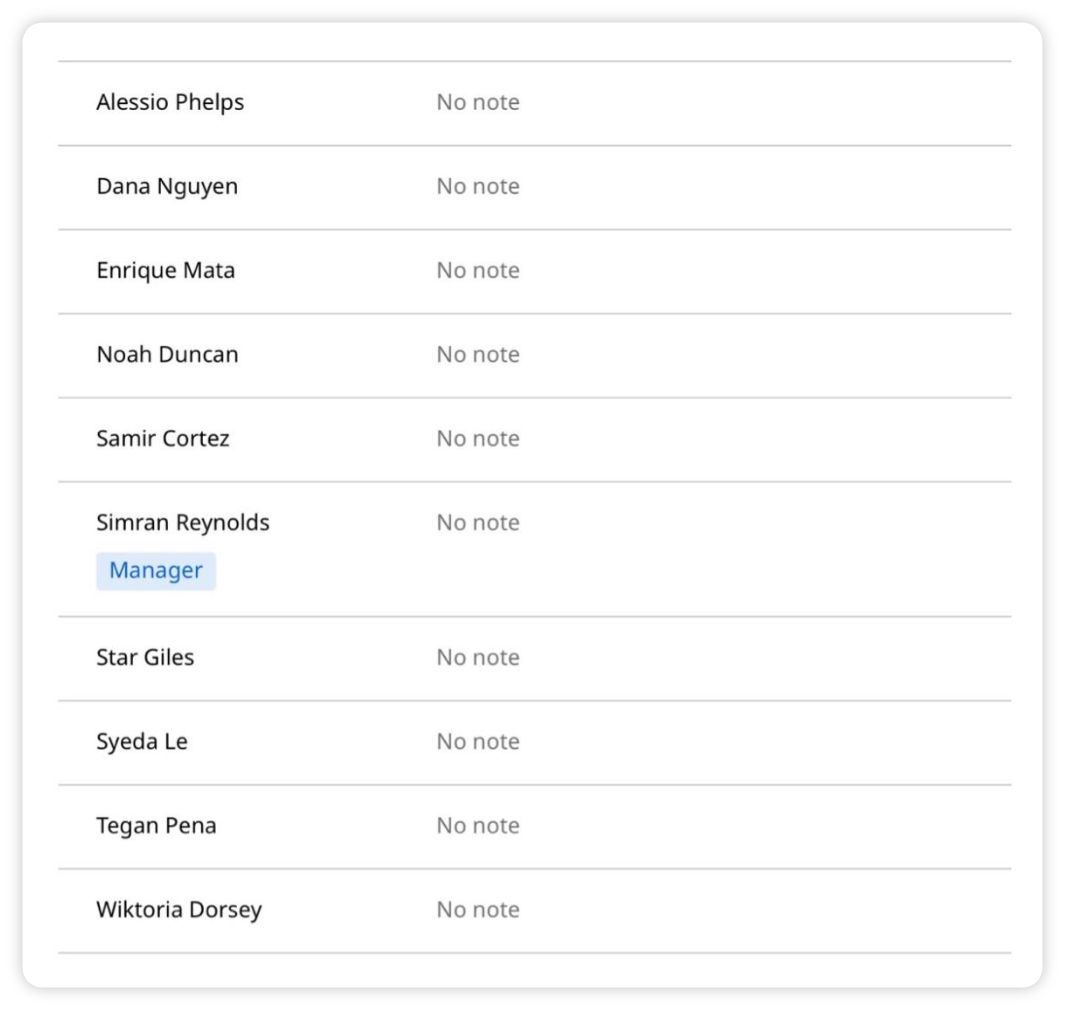
Below Personal Notes, you’ll see a list of those invited to comment on the Yearbook who have not posted a note yet.
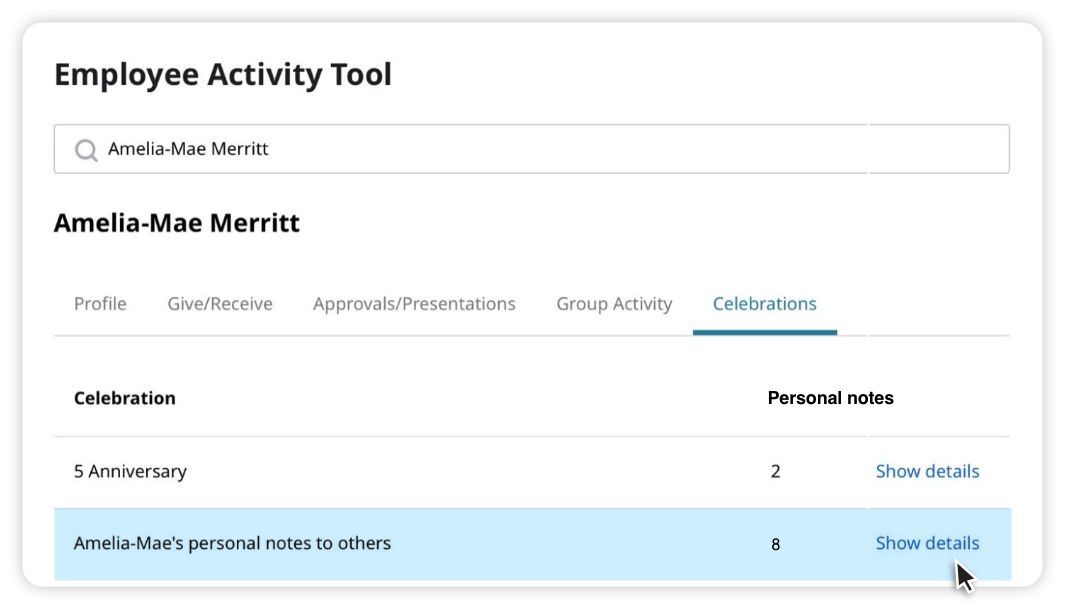
Click “Show details” next to the employee’s “Personal notes to others” to review personal notes they have contributed to other Yearbooks.
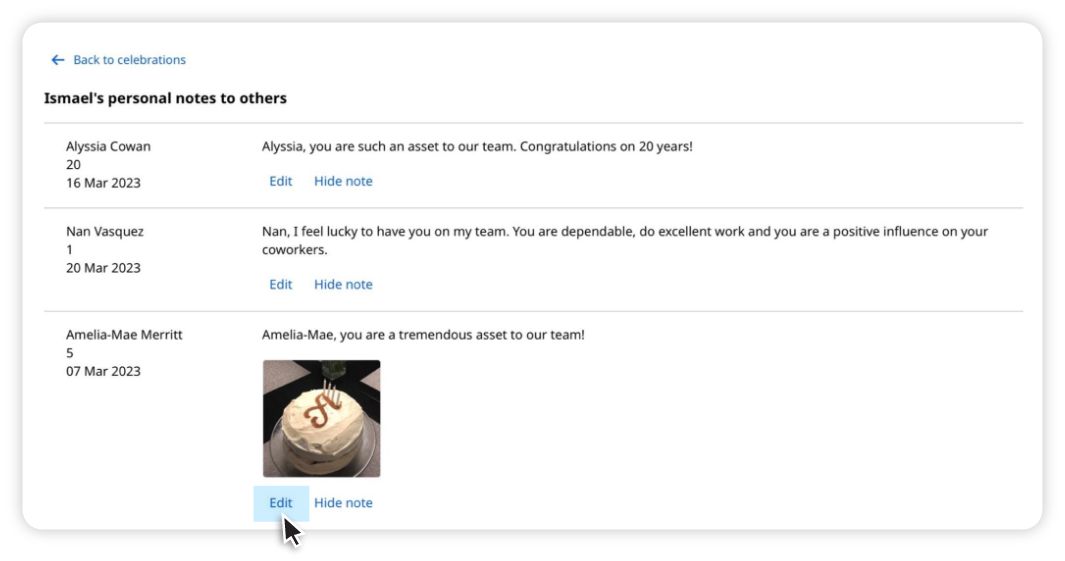
When reviewing personal notes in a Celebration, click “Edit” to change text or remove photo(s) or video.
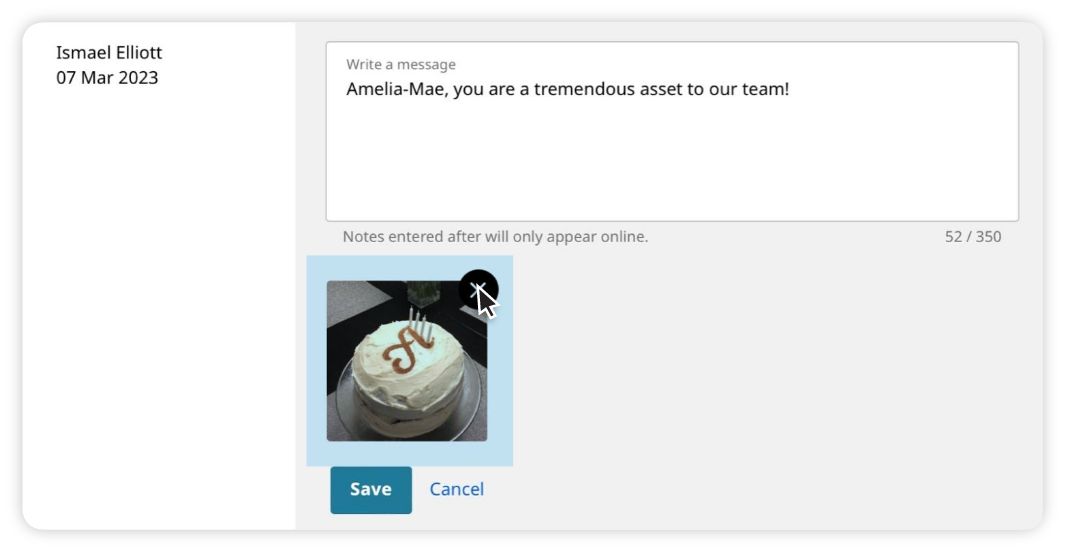
When you click the “X” to remove a photo or video, you will receive the following message.
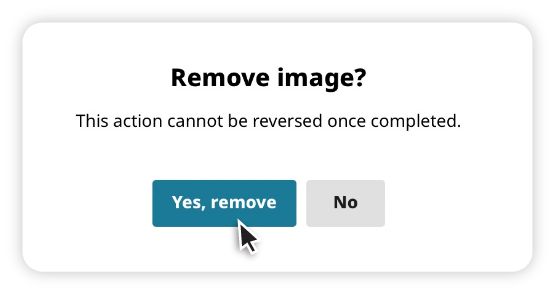
Make sure you want to remove the photo or video before clicking “Yes, remove,” since this action cannot be undone.
When you are finished editing, click “Save” to save changes, or “Cancel” to revert to the original note.
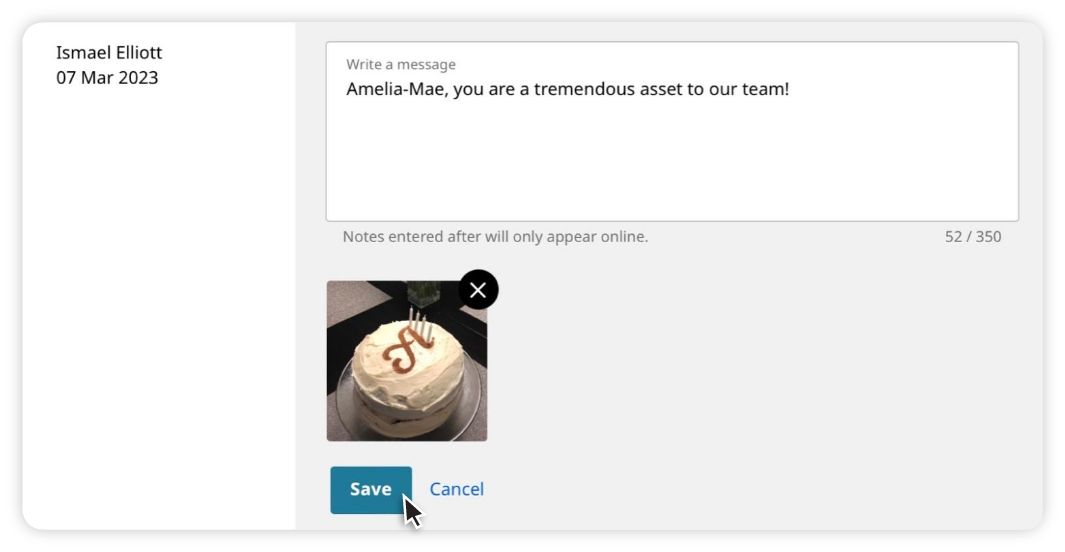
If you are editing a note for an anniversary happening in the next 14 days, you will receive notification that any changes made to this note will only appear in the online version of the Yearbook but not in the printed version.

You can also choose to “Hide note.” Notes that contain inappropriate content can be “hidden” and will not be published in either the printed or digital version of the Yearbook.
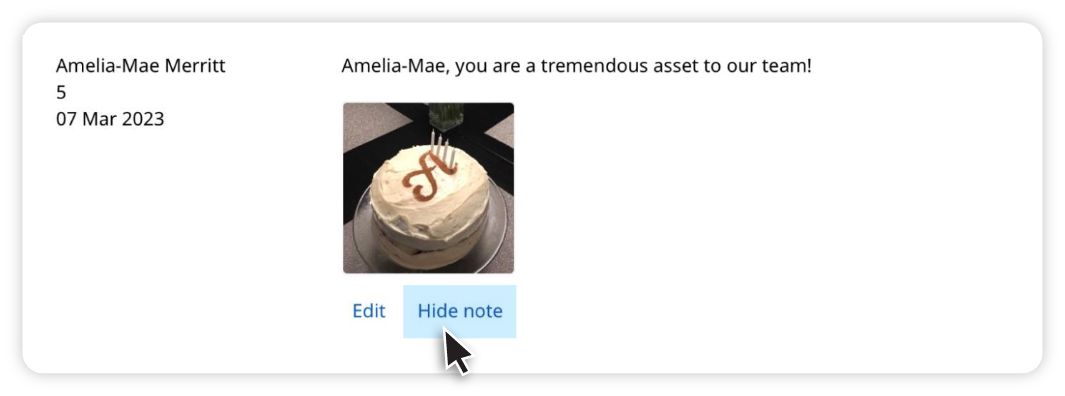
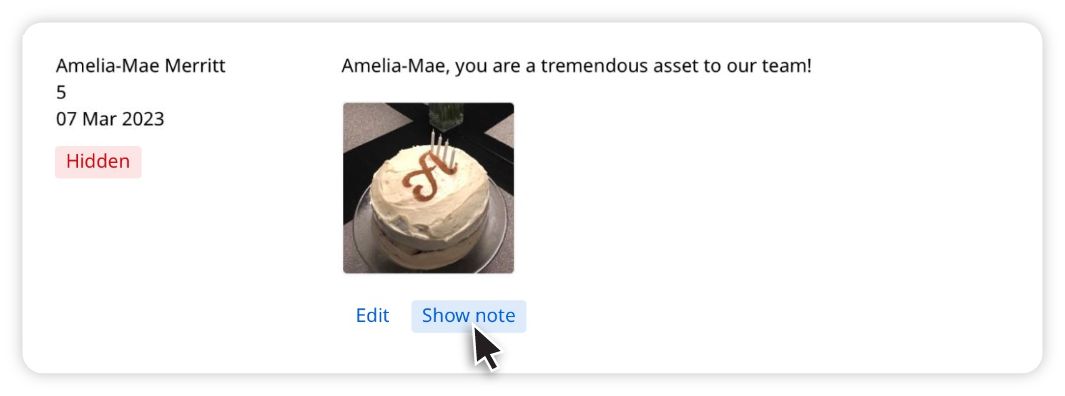
To undo a “Hidden” note, click “Show note.” The note will now be part of the Yearbook.
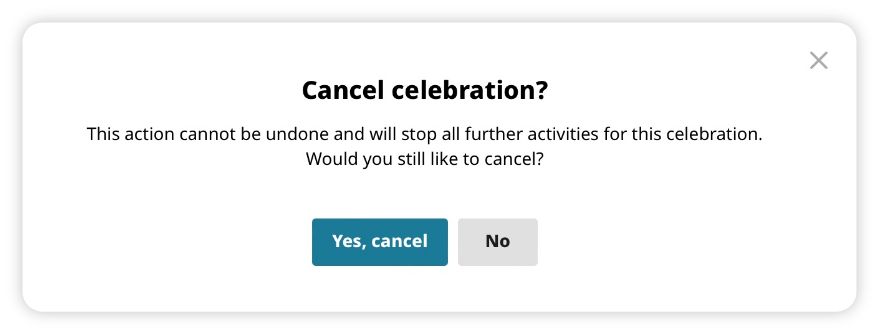
Admins can also cancel a celebration, in cases where an employee has been terminated or left the company, or if a celebration was created in error. Click the “Cancel celebration” button.
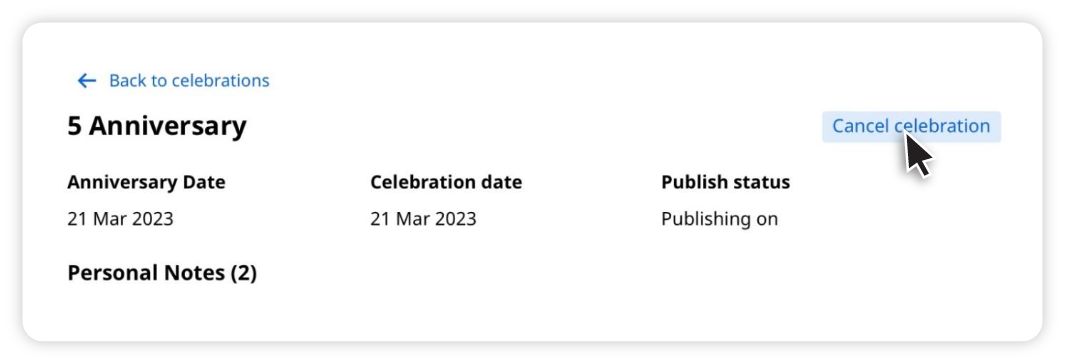
You will see a message asking if you are sure you want to cancel this celebration. Once a celebration is cancelled, it cannot be undone and all preparations for this Yearbook will stop. Click “No” to go back or “Yes, cancel” to cancel the celebration.